Select your AI client to get started:
Each platform takes under 5 minutes to set up.
Install OpenClaw
If you don't have OpenClaw yet, download and install it from openclaw.ai. It runs on Mac and Windows.
Install TherapistTasksAI
Open a terminal and run:
OpenClaw will download the skill, prompt you for your license key, and configure everything automatically. That's it.
Start using your tasks
Just describe what you need in plain language:
"I need help with Write a therapy progress note"
TherapistTasksAI finds the right task, confirms with you,
then runs it. Each task uses 1 credit.
Check your credit balance anytime: "Check my therapist credits"
💡 Don't have a license key yet?
Sign up for 5 free credits - no credit card required. Your license key is emailed to you immediately.
Step 1 — Download the installer
One file. Double-click it, enter your license key, then restart your AI client. No terminal required.
Requirements: Mac or Windows · Claude Desktop, Cursor, Windsurf, or Cline already installed · No terminal or Python required
Can't run the installer? Use the manual Python setup instead →
Download Claude Desktop free (Mac & Windows) →
Close Claude Desktop
If Claude Desktop is running, fully quit it first — not just close the window.
- Windows: Right-click the Claude icon in the system tray (bottom-right near the clock) → Quit
- Mac: Click Claude → Quit Claude in the menu bar, or press ⌘Q
This ensures the installer can write files without conflicts.
Download & run the installer
Use the green download button above. Double-click TherapistTasksAI-Setup.exe (Windows) or TherapistTasksAI-Setup (Mac).
- Enter your license key (from your signup email)
- Click Verify to confirm your key works
- Click Install
- Wait for "Installation complete" — then close the installer
🛡️ Windows users: you'll see a safety warning — here's what to do
Windows shows a blue "Windows protected your PC" screen for all new software. It doesn't mean anything is wrong — just click through it:
- Click "More info" (small text link below the main message)
- Click "Run anyway"
- The installer opens normally — continue from there
This warning will disappear as more people install the app. It's a standard Windows precaution for any new publisher.
The installer places the server in a permanent location and configures Claude Desktop automatically. You can delete the installer file afterward.
Open Claude Desktop & approve the connector
Open Claude Desktop. Go to Settings → Connectors (or Customize).
You'll see therapisttasksai listed. Click to approve it. It should show a green status.
💡 Don't see it? Try fully quitting Claude Desktop (Step 1) and reopening it. MCP servers load at startup.
Confirm it's working (30 seconds)
Open a new Claude Desktop conversation and type:
You should see your credit balance returned instantly. If you do — you're all set! 🎉
🛑 Got an error? Make sure you fully quit and restarted Claude Desktop after the installer ran. If it still fails, visit Support.
Enable permissions so your skills always work
🔒 This step is Claude Desktop only — do it once and it's permanent
Without this, Claude Desktop will ask permission every single time you use a skill — and may skip your skills entirely. Takes 30 seconds.
ⓘ Cursor, Windsurf, and Cline users: skip this step — your tools are always available once installed.
- In Claude Desktop, click Settings
- Go to Connectors — you'll see a note that connectors have moved to Customize. Click that link.
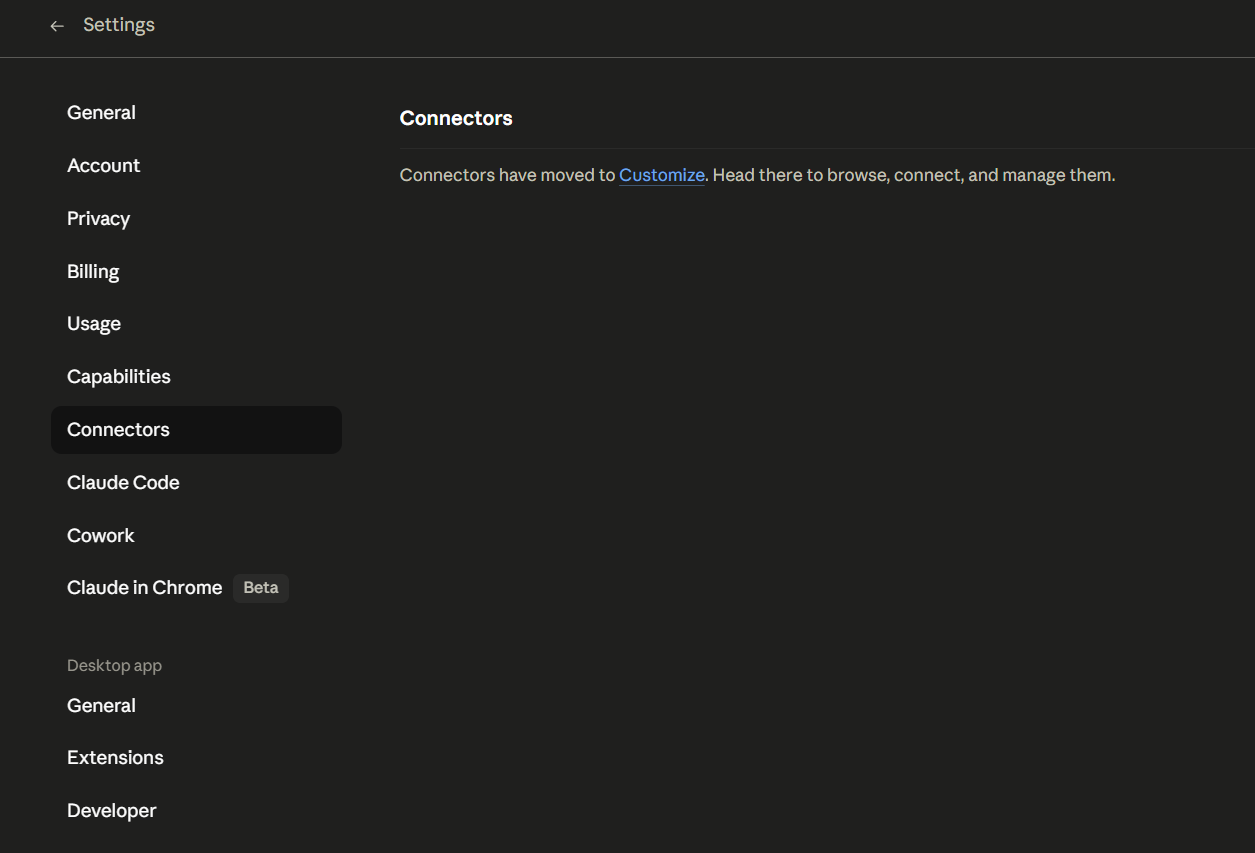
Settings → Connectors → click “Customize”
ⓘ Your connector will be listed as therapisttasksai in the Desktop section.
- Under Desktop, click therapisttasksai
- Next to Other tools, click the dropdown and select Always allow
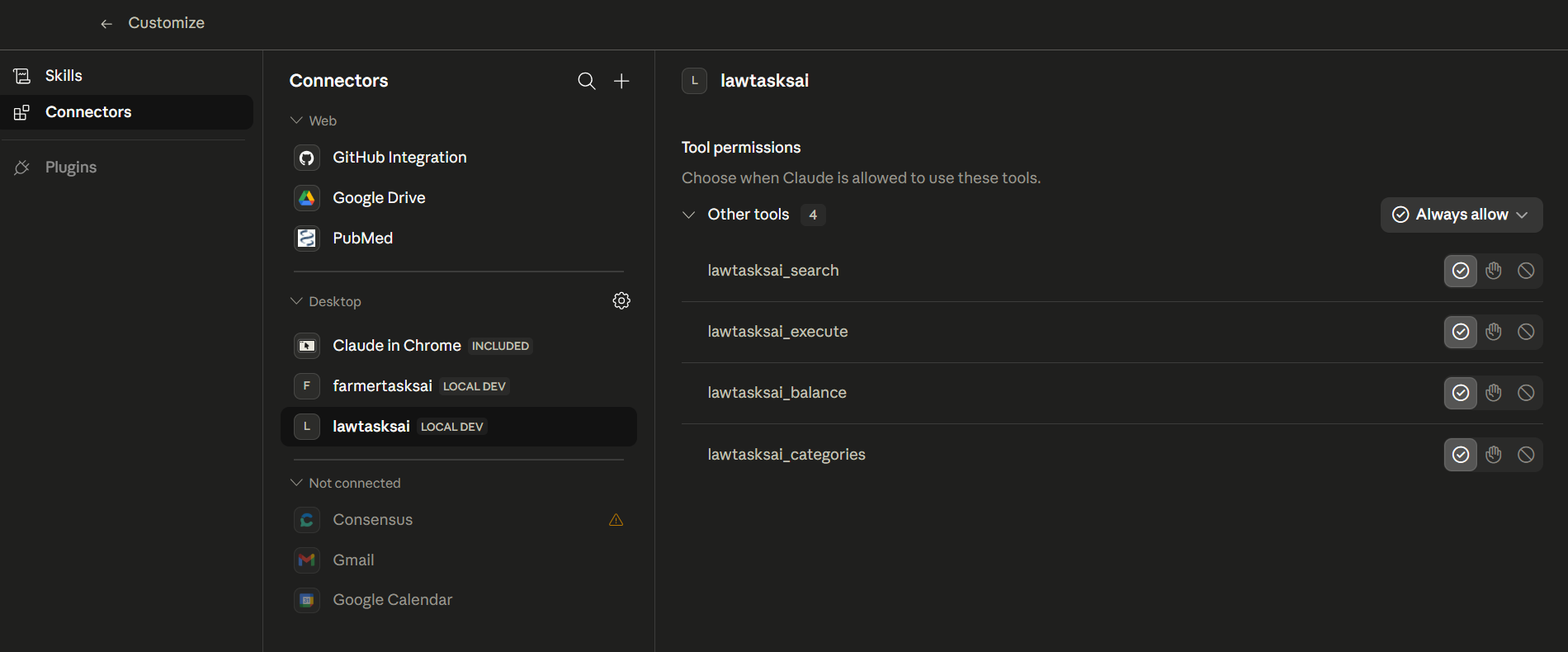
Set all four tools to “Always allow”
ⓘ You'll see four tools: therapisttasksai_search, therapisttasksai_execute, therapisttasksai_balance, therapisttasksai_categories — set them all to “Always allow.”
- Start a new conversation in Claude Desktop — tools load at conversation start, not mid-chat.
Start a conversation with TherapistTasksAI
🎯 The user trigger — one rule to remember
Start every prompt with "Use TherapistTasksAI to…" and Claude will always invoke your skills — every time, without fail.
That prefix is your trigger. Without it, Claude may answer from its own training instead of using your TherapistTasksAI skills.
More examples — paste any of these into a new conversation:
- "Use TherapistTasksAI to Write a therapy progress note"
- "Use TherapistTasksAI to search for tasks I can run today"
- "Use TherapistTasksAI to show me what categories are available"
TherapistTasksAI will search its skill library and present options. Pick one, and Claude will run the full expert framework (1 credit per use).
💡 Power user tip: skip the trigger entirely with a Project
Create a Project in Claude Desktop (e.g., "My Practice" or "My Office") and add this custom instruction:
Every conversation in that project will automatically use TherapistTasksAI — no trigger needed, ever.
You're set!
Try these to explore:
- "Check my therapist credits" — see your balance
- "Show therapist categories" — browse all skill categories
- "Search TherapistTasksAI for Write a therapy progress note" — find specific skills
Need Help?
Fill in the form and we'll get back to you within a few hours.